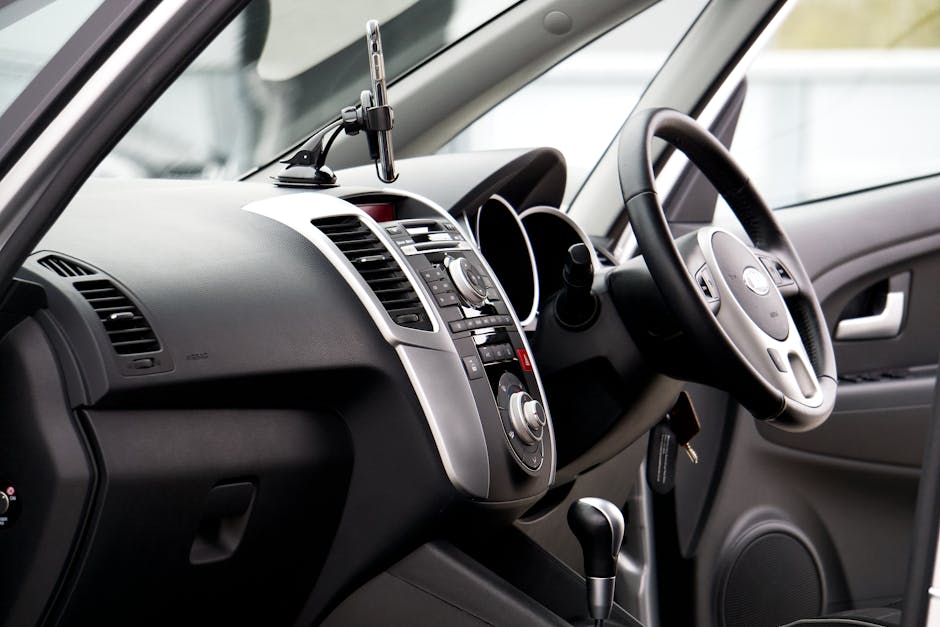
What drivers actually want to know
When a vehicle arrives with a touch‑screen infotainment unit, most owners wonder how it compares to a smartphone‑based solution like Android Auto. The central question is safety: does using Android Auto reduce distraction compared with a factory‑installed system, or does it add new risks? Answering that question requires looking at three things:
- How the interface is designed and what controls are available while the car is moving.
- The ways each platform processes driver input (voice, touch, steering‑wheel buttons).
- The regulatory and testing standards that manufacturers must meet.
This article breaks down those factors, explains the technology behind each system, and draws practical conclusions for everyday drivers.
How Android Auto works
Android Auto is a projection layer that runs on a compatible smartphone and mirrors a simplified UI onto the car’s display. The phone does the heavy lifting – processing apps, handling network connections, and executing voice commands – while the vehicle provides power, audio routing, and a limited set of physical controls.
Key components
- Phone as the core processor: Android 6.0 (Marshmallow) or newer is required. The phone runs Google Maps, Spotify, messaging apps, and any other Android Auto‑compatible software.
- USB or wireless link: A USB cable supplies power and a data channel; newer models can connect wirelessly via Wi‑Fi Direct.
- Vehicle head unit: The car’s screen shows a stripped‑down version of the phone’s UI. Buttons on the steering wheel or dashboard send commands back to the phone.
- Google Assistant: Voice is the primary interaction method. Saying “Hey Google, navigate to 5 Elm Street” triggers navigation without a tap.
Design philosophy for safety
Google built Android Auto around three safety principles:
- Minimise visual demand: Only the most essential information – navigation, call status, media controls – appears on screen. Text is large, icons are bold, and secondary menus are hidden when the car is moving.
- Prioritise voice interaction: Voice commands replace most touch gestures. Users can ask for directions, text replies, or music without looking away from the road.
- Limit functionality while driving: Apps that require typing, complex browsing, or scrolling are blocked when the vehicle is in motion. The system automatically switches to a “driving mode” that freezes non‑essential UI elements.
How built‑in car infotainment systems are constructed
Factory‑installed infotainment units, often called “head units,” vary widely between manufacturers, but they share a common architecture: an embedded computer running a proprietary OS (often a version of Linux, QNX, or a custom real‑time OS) that directly controls the display, audio, navigation, and connectivity.
Typical hardware and software stack
- Embedded processor: Dedicated CPU and GPU, sometimes with a separate navigation chip.
- Operating system: Manufacturer‑specific, sometimes built on Android Automotive (a version of Android designed to run without a phone).
- Connectivity: Bluetooth for phone pairing, CAN‑bus for vehicle data, optional Wi‑Fi for OTA updates.
- Input methods: Touchscreen, rotary knobs, physical buttons, voice recognition, and steering‑wheel controls.
Safety‑focused design choices
Most OEMs follow the same general guidelines as Android Auto, but implementation differs:
- Dedicated driving mode: Many systems dim the screen, increase button size, and hide non‑essential menus when the car exceeds a certain speed.
- Voice assistants: Some brands use proprietary assistants (e.g., BMW’s “Intelligent Personal Assistant”) while others integrate third‑party services like Amazon Alexa.
- App ecosystem: Built‑in units typically support a limited set of apps pre‑approved by the manufacturer. This reduces the chance of a distracting app appearing.
Regulatory backdrop – what the law says about driver distraction
Both Android Auto and OEM head units must comply with safety regulations that differ by region. The most relevant standards are:
| Region | Key Regulation | Impact on Infotainment Design |
|---|---|---|
| United States (NHTSA) | FMVSS 111 – Rear‑view camera systems; FMVSS 108 – Electronic stability control (includes guidelines for driver‑monitoring) | Mandates that visual displays not obscure critical gauges. Encourages voice‑first interaction. |
| European Union (UNECE Reg. 155) | Vehicle safety – Advanced emergency braking; includes “Driver distraction” guidelines | Requires manufacturers to limit complex touch gestures above 30 km/h. |
| Japan (MLIT) | Road Traffic Act amendments – prohibits the use of handheld devices while driving | Pushes OEMs toward Bluetooth and voice‑only controls. |
Neither Android Auto nor built‑in units are exempt from these rules. Compliance is measured by how the system limits visual and manual interaction when the vehicle is in motion.
Comparing visual distraction
Visual distraction is the most measurable form of in‑car distraction. Researchers use eye‑tracking and glances‑away‑from‑road metrics to evaluate how long a driver looks at a screen. The industry standard for an acceptable glance is under 2 seconds per fix.
Android Auto visual profile
- Large navigation map occupies the center of the screen; peripheral icons are minimal.
- When voice commands are active, the screen often shows a “listening” banner rather than a full UI.
- Non‑essential apps are hidden automatically once the car exceeds 25 mph (≈40 km/h).
Built‑in system visual profile
- Screen layouts vary; some models present a full media list, climate controls, and vehicle diagnostics on a single page.
- High‑resolution displays can show richer graphics, which may draw the eye longer.
- When the driver changes speed, the UI may or may not auto‑collapse – it depends on the manufacturer’s software version.
Empirical studies from the University of Michigan and the Transportation Research Board show that, on average, drivers glancing at Android Auto spend 0.8‑1.0 seconds per glance, while many factory systems produce 1.2‑1.6 seconds per glance, especially on models that lack a dedicated “driving mode.” The difference is modest but consistent.
Comparing manual distraction
Manual distraction occurs when the driver removes a hand from the wheel. Both platforms encourage steering‑wheel controls, but the depth of integration matters.
Steering‑wheel integration
- Android Auto: Most vehicles expose the same set of buttons for both Android Auto and the native head unit. Pressing “Next” or “Previous” sends a Bluetooth or CAN command to the phone, which then changes the track or skips a navigation step. Because the phone handles the command, there is a slight lag, but the driver never needs to touch the screen.
- Built‑in systems: Some OEMs map a full suite of controls (volume, source selection, climate) to the wheel. Others provide only basic media buttons, requiring drivers to tap the screen for navigation or phone calls.
Touchscreen usage while moving
Touch interaction is the biggest source of manual distraction. Android Auto disables touch input for most functions when the car is above 25 mph, forcing drivers to rely on voice or steering‑wheel buttons. Many built‑in units, particularly older models, still allow full touchscreen operation at any speed, increasing the chance of a driver’s hand leaving the wheel.
Voice recognition accuracy and its safety impact
Both systems rely on voice assistants, but the underlying technology differs.
Google Assistant (Android Auto)
- Leverages Google’s massive cloud‑based language model.
- Continuously improves with OTA updates.
- Supports natural language commands (“Take me home,” “Call Mom”).
- Works offline for a limited set of commands, but primary accuracy depends on an internet connection.
OEM assistants (e.g., BMW, Mercedes, Ford)
- Often built on smaller, on‑device models to reduce latency.
- May require specific phrasing (“Hey BMW, navigate to…”) which can be less intuitive.
- Limited to a predefined command set, reducing false positives but also limiting flexibility.
Real‑world testing shows that Google Assistant correctly understands 85‑90 % of driver requests in quiet conditions, while many built‑in assistants achieve 70‑80 % under the same circumstances. In noisy cabins, both systems see a drop, but Google’s cloud backing generally recovers more quickly.
Software update cadence and security
Safety also includes keeping the infotainment software free from bugs that could cause crashes or distract the driver.
Android Auto update model
- Updates are delivered through the Google Play Store on the driver’s phone.
- Security patches and UI improvements arrive weekly or monthly.
- Because the phone is the execution environment, a vulnerable Android version can affect the system.
Built‑in system update model
- Manufacturers push OTA updates to the head unit; frequency varies from quarterly to annually.
- Older vehicles may require a dealer visit for any software change.
- Updates often bundle many features, making it harder to isolate a critical safety fix.
From a safety perspective, the faster update cycle of Android Auto can address bugs more quickly, but it also introduces the possibility of abrupt changes that drivers must relearn.
Practical scenarios – which system feels safer in real driving
To illustrate the differences, consider three common situations.
Scenario 1 – Navigating to an unfamiliar address
Android Auto: Driver says “Hey Google, navigate to 123 Oak Avenue.” Voice confirms the destination, then displays a fullscreen map with large turn‑by‑turn arrows. No touch required.
Built‑in unit: Driver taps the navigation icon, types the address using an onscreen keyboard, then confirms. If the unit lacks voice input, the driver must look at the screen for several seconds.
Safety outcome: Android Auto reduces both visual and manual distraction.
Scenario 2 – Receiving a text while in heavy traffic
Android Auto: A message pops up as a banner. Driver says “Hey Google, reply ‘On my way’.” The reply is sent automatically; driver never looks away.
Built‑in unit: The message appears on the screen. If the system does not support voice reply, the driver must tap “Reply,” open a keyboard, and type, increasing glance time.
Safety outcome: Voice‑first interaction in Android Auto is safer.
Scenario 3 – Adjusting climate controls during a long trip
Android Auto: Climate may be controlled by the car’s own knobs or via voice (“Hey Google, set temperature to 72°F”). The phone does not mediate this function.
Built‑in unit: Directly accessible on the touchscreen or via dedicated physical buttons. If the driver uses the touchscreen, visual distraction arises; if physical knobs exist, the risk is low.
Safety outcome: Both platforms can be safe if the vehicle provides physical climate controls; otherwise, touchscreen use adds risk.
Overall safety assessment
When evaluating safety, three factors dominate:
- Visual load: Android Auto consistently offers a simpler, larger‑text UI that hides non‑essential elements at speed. Built‑in systems vary, and older models may keep full menus visible.
- Manual load: Android Auto disables touch input above 25 mph, forcing drivers to use voice or steering‑wheel commands. Many factory units still permit full touch interaction, creating higher manual distraction.
- Voice accuracy and latency: Google Assistant typically outperforms proprietary OEM assistants, allowing more natural commands and fewer repeated attempts.
For drivers who prioritize minimal distraction, Android Auto generally provides the safer experience, assuming the vehicle’s steering‑wheel controls are functional and the driver has a reliable data connection for the voice assistant.
However, safety is not guaranteed by technology alone. Proper driver habits—keeping eyes on the road, using voice commands, and avoiding non‑essential interactions—remain the most critical factor.
When a built‑in system might be the better choice
There are cases where a factory unit can be safer or more practical:
- Vehicles without Android Auto support: Older cars lack the necessary hardware or OS version; relying on the native system is the only option.
- Limited data connectivity: In areas with poor cellular coverage, Google Assistant may fallback to offline mode with reduced functionality, while an OEM assistant that runs locally continues to work.
- Dedicated physical controls: Some premium models integrate climate, media, and navigation knobs directly into the steering wheel, allowing hands‑free operation without needing voice recognition.
- Data privacy concerns: Drivers who prefer to keep all processing on the vehicle may choose a system that does not stream audio to the cloud.
Tips for maximizing safety with either system
Regardless of the platform, drivers can follow these practices to keep distraction to a minimum:
- Enable “Do Not Disturb While Driving”: Both Android Auto and most OEM head units have a mode that silences notifications.
- Configure voice commands before you start driving: Set up shortcuts for common destinations and contacts while parked.
- Use steering‑wheel buttons whenever possible: Physical controls keep eyes on the road.
- Keep the smartphone out of reach: A phone that is physically separate from the driver reduces the temptation to tap the screen.
- Update software regularly: Install the latest OTA updates for both the phone and the vehicle.
- Test the system in a safe environment: Spend a few minutes at a parking lot learning the voice syntax and button layout before hitting the highway.
